


Android smartphones are strong, but they may get slow, laggy, and full of junk with time. Learning how to clear cache on Android is one of the best methods to make things run better. Apps and the system store temporary data called cache files. They help speed up processes, but too much cache might make your phone slower.
This in-depth article will teach you everything you need to know about clearing the cache on your Android device, including why it matters, step-by-step instructions, the pros and cons, and expert recommendations to keep your device functioning smoothly.
What does “cache” mean on Android?
It’s crucial to know what cache is before you learn how to clear it on Android. Apps, browsers, and the Android system store temporary data in a cache to make things load faster.
For instance:
- Apps store images and data to load quickly
- Browsers save website elements
- Games store textures and files
caching can make things run faster at first, but too much caching might cause difficulties.
Why You Should Clear Your Android Cache
It’s crucial to know how to clean your Android’s cache because too much cache can hurt your phone.
Important reasons to remove cache:
- Improves phone speed
- Frees up storage space
- Fixes app crashes and bugs
- Resolves loading issues
- Enhances overall performance
Apps can stop working when cache gets old or broken. That’s why it’s important to know how to clear the cache on Android.
Different Types of Cache on Android
Before you learn how to clear cache on Android, you should know about the different types of cache.
1. Cache for Apps
Apps like social media, games, and messaging apps save them.
2. Cache for the system
The Android operating system uses this to speed up tasks.
3. Cache in the browser
Browsers like Chrome keep them so that websites can load quickly.
There is a slightly different way to clean the cache on Android for each type.

How to Clear Cache on Android (Step-by-Step Guide)
Now let’s get into the main topic: how to clear cache on Android.
Method 1: Clear Cache for Individual Apps
This is the safest and most recommended method.
Steps:
- Open Settings
- Go to Apps or App Management
- Select the app you want
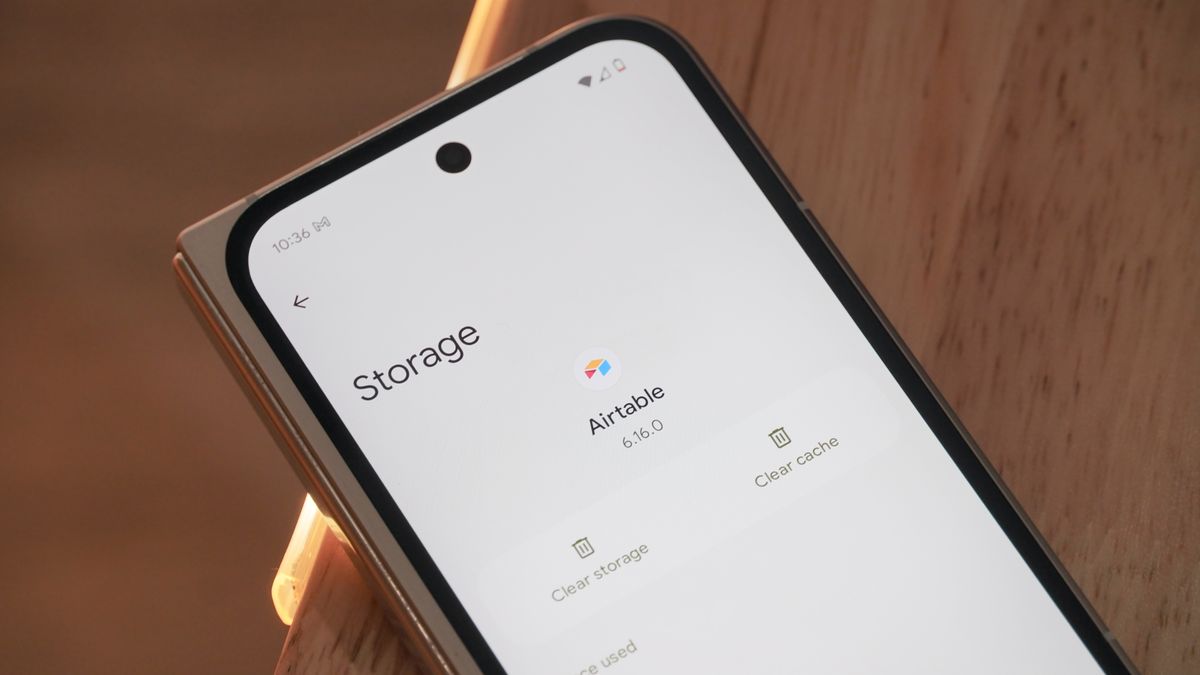
- Tap Storage
- Tap Clear Cache
This method helps target specific apps causing issues.
Method 2: Clear Cache for All Apps (Using Storage Settings)
Some Android devices allow clearing cache in bulk.
Steps:
- Open Settings
- Go to Storage
- Tap Cached Data
- Confirm to clear cache
This is a quick method if you want to apply how to clear cache on Android across all apps.
Method 3: Clear Browser Cache
Browsers store a lot of cache data.
Steps (for Chrome):
- Open Chrome
- Tap three dots menu
- Go to History
- Tap Clear Browsing Data
- Select Cached Images and Files
- Tap Clear Data
This is essential when learning how to clear cache on Android for better browsing.
Method 4: Clear System Cache (Recovery Mode)
Advanced users can clear system cache.
Steps:
- Turn off your phone
- Press Power + Volume Up/Down
- Enter Recovery Mode
- Select Wipe Cache Partition
- Reboot device
This method is powerful when performing deep cleaning.
The advantages of clearing the cache on Android
You will get a lot of benefits after you learn how to clean cache on Android.
Some of the most important benefits are:
- Faster app loading
- Reduced lag and freezing
- More free storage space
- Better battery performance
- Improved system stability
If you want your phone to perform well, you should clear the cache often.
How often should you clear your cache?
A typical question about clearing the cache on Android is how often it should be done.
- Once every 2–4 weeks for normal users
- Weekly if you use heavy apps or games
- Immediately if apps crash or lag
Don’t erase your cache every day, as this could slow down apps for a short time.
What is the difference between clearing cache and clearing data?
It’s crucial not to mix up cache with data when you learn how to clear cache on Android.
| Feature | Clear Cache | Clear Data |
|---|---|---|
| Deletes temp files | Yes | Yes |
| Removes login info | No | Yes |
| Resets app | No | Yes |
| Safe to use | Yes | Use carefully |
Always pick “Clear Cache” unless you have to.
Common Problems Fixed by Clearing Cache
Knowing how to clear cache on Android helps fix several issues:
- Apps not opening
- Slow performance
- Storage full warning
- App crashes
- Websites not loading
If you face any of these, clearing cache is often the quickest solution.
Best Apps That Store Cache
Some apps keep more cache than others. When you learn how to clean cache on Android, pay attention to:
- Social media apps
- Video streaming apps
- Gaming apps
- Browsers
- Shopping apps
These programs keep a lot of temporary data.
How to Handle Cache Well
Once you know how to clean cache on Android, do these things:
Smart advice for managing your cache:
- Clear cache only when needed
- Monitor storage regularly
- Avoid unnecessary apps
- Update apps frequently
- Restart your phone weekly
These behaviors will make it less need to remove the cache often.
Is it safe to clear the cache?
Yes, it is perfectly safe to learn how to clean cache on Android.
- Does not delete personal data
- Does not remove apps
- Does not affect files or photos
But it can take apps a little longer to open the first time after emptying the cache.
Signs You Need to Clear Cache
Here are clear indicators that you should apply how to clear cache on Android:
- Phone feels slow
- Apps crash frequently
- Storage is almost full
- Browser loads outdated pages
- Games lag or freeze
Recognizing these signs helps maintain performance.
Advantages vs Disadvantages of Clearing Cache
Advantages:
- Faster performance
- More storage space
- Fixes bugs
- Improves user experience
Disadvantages:
- Temporary slower app loading
- Needs reloading of data
- Frequent clearing not necessary
Overall, benefits outweigh the drawbacks.
In general, the pros exceed the cons.
More Advanced Tips for Android Performance
You can speed up your Android even more than just learning how to clear the cache.
More ideas for optimizing:
- Disable unused apps
- Reduce animations
- Keep software updated
- Use lite versions of apps
- Avoid background processes
These steps go along with clearing the cache.
Myths About Clearing Cache
Many users misunderstand how to clear cache on Android.
Common myths:
- Clearing cache deletes photos (False)
- It damages apps (False)
- You should do it daily (False)
- It improves battery instantly (Partially true)
Understanding the truth helps use this feature properly.
Conclusion
Smartphones are important tools in today’s digital world, and it’s important to keep them running well. Knowing how to clear the cache on an Android device gives users more control over how well their device works. You can avoid a lot of common problems and have a pleasant Android experience by following a few simple steps and keeping up with monthly maintenance.
Check your cache often, use the appropriate ways, and keep your phone functioning like new.
Read More:-Android 18 Character Guide: Power, Story, Abilities & Evolution